Automatic Playwright sharding is now in Playrunner

Playrunner can now turn one Playwright node into a complete sharded test run. It discovers the suite, chooses a capacity-aware execution plan, starts the shards concurrently, and merges their results into one report.
You set the limits. Playrunner decides how much parallelism the suite can use.
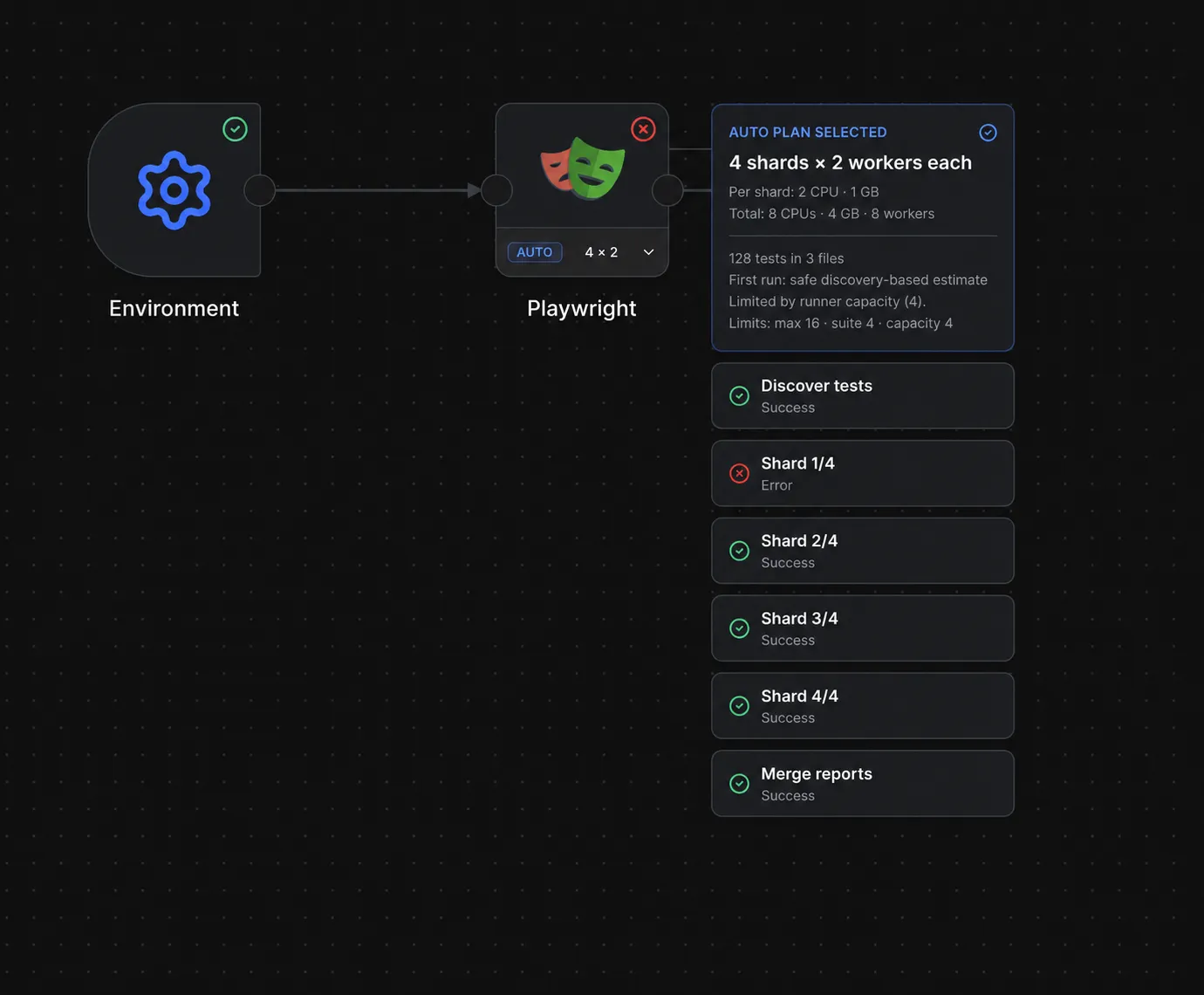
A 128-test suite running as four shards with two workers each. One shard has failed, but Playrunner still merges the available reports for diagnosis.
From a fixed test command to an execution plan
Playwright already provides the primitives for distributing a suite. You can
pass --shard=1/4 to one runner, --shard=2/4 to another, and merge the blob
reports after every runner finishes.
The difficult part is everything around those commands:
- deciding how many shards the current suite can use;
- keeping the plan inside runner CPU and memory capacity;
- starting every shard and tracking its result;
- validating that all expected blob reports arrived; and
- returning one combined report and one workflow outcome.
Until now, teams had to model that work themselves. Playrunner now owns it inside the Playwright node.
This is the first working version of the elastic execution model we described in When Playwright outgrows your GitHub Actions runner.
Auto starts by discovering the suite
When Suite sharding is set to Auto, Playrunner first starts a discovery runner and asks Playwright to list the tests:
playwright test --list --reporter=json
That gives the planner the current test count, file count, project count, parallel mode, and source revision before the main run begins.
The distinction between tests and files matters. With Playwright
fullyParallel: true, every test can be distributed independently. Otherwise,
tests in the same file and project stay together, so each file-project pair is
one shardable unit.
Discovery means a small smoke suite does not receive the same topology as a large regression suite simply because both use the same saved workflow.
You configure ceilings, not a fixed machine layout
Auto mode exposes four main controls:
- Maximum shards
- Maximum CPU per shard
- Maximum memory per shard
- Maximum workers per shard
These values are limits, not guaranteed allocations. Playrunner reduces the plan when the suite cannot use the requested parallelism or the selected runner backend cannot supply it.
For shard count, the planner allows approximately four shardable units for every configured worker on a shard:
ceil(shardable units / (maximum workers per shard * 4))
It then selects the smallest of the configured maximum, the useful shard count, and the runner capacity available for the workflow.
Capacity includes concurrent runners, total shards, aggregate CPU, aggregate memory, and aggregate workers. The plan is selected as one feasible shape, so increasing a single maximum cannot accidentally request more compute than the backend can provide.
The expanded plan on the canvas shows what Playrunner selected and why. In the example above, discovery found 128 tests in three files. The selected plan uses four shards, two workers per shard, and eight workers in total. It also shows that the first-run estimate was limited by runner capacity.
Planning improves as comparable runs complete
The first run uses a safe discovery-based estimate. Later runs can use up to 10 comparable observations from the same workflow node.
Playrunner only uses history when the previous run produced all of its blob reports and its Playwright parallel mode, project count, and suite size are comparable with the current discovery result. This prevents an unrelated run from distorting the plan.
When suitable history exists, the planner can:
- reuse observed memory allocations instead of returning immediately to the first-run maximum;
- estimate duration from suite size and effective parallelism; and
- choose the smallest feasible CPU shape estimated to meet a configured target duration.
The saved workflow still defines the boundaries. The runtime plan adapts inside them.
Every shard stays visible
Automatic planning does not hide execution behind one opaque status. The workflow canvas shows discovery, each numbered shard, and the final merge as separate child runs beneath the Playwright node.
Each shard receives Playwright's native shard argument and produces a blob report. Before merging, Playrunner checks that every shard index is present, that no index is duplicated, and that every report matches its recorded size, checksum, source revision, and Playwright version.
The aggregation runner then creates one HTML and JSON report:
playwright merge-reports --reporter=html,json
A failed shard still makes the Playwright node fail. When all shards produced valid blob reports, however, the merge can complete first. That is why the example shows Shard 1/4 in error and Merge reports as successful: the workflow keeps one combined report containing the failure evidence instead of making you inspect separate runner outputs.
Manual and unsharded runs are still available
Automatic planning is optional. The Playwright node now supports three suite sharding modes:
- Off runs the suite once without a shard argument.
- Manual requests a specific number of shards while respecting the suite size and runner capacity.
- Auto discovers the suite and selects shards, workers, CPU, and memory within the configured maximums.
Manual mode is useful when a team wants a stable, explicit topology. Auto is for workflows that should adapt as the suite and available capacity change.
Suite discovery, sharded execution, and blob-report merging currently require the TypeScript Playwright Test runtime.
Try automatic sharding
Open a Playwright node, set Suite sharding to Auto, and choose the maximum resources the workflow may use. The next run will discover the suite before selecting and displaying its execution plan.
For the complete behavior, planning rules, and runner limits, see the Playwright integration reference.