Reuse Browser Sessions with Authentication Profiles
Authentication Profiles let a Playwright node begin with a real signed-in browser session. You sign in manually in a visible browser, Playrunner captures the resulting browser state, and Local or Playrunner Cloud runner executions restore that state without storing your identity-provider password.
With local Playrunner, the API opens the browser directly. With Playrunner Cloud, the Playrunner CLI authentication companion opens Chrome on a computer you have paired with your Cloud account and securely returns the captured state to the profile.
Use a separate profile for each application, Environment, and test role that needs an independent session.
Before you start
You need:
- Google Chrome or a compatible Chromium browser.
- A saved Environment for the target application.
- For Playrunner Cloud, Node.js 20 or later and Playrunner CLI 0.2.5 or later on the computer where you will sign in. Complete the authentication companion setup first.
- For local Playrunner, a running API with interactive authentication enabled and Chrome available on the API host.
- To use the captured profile in a workflow, an owner-initiated workflow using the Local runner or the Playrunner Cloud runner.
Authentication Profiles belong to their owner. A shared workflow run cannot use the workflow owner's saved browser session.
Step 1 — Create a profile
- Open Authentication Profiles from the Playrunner sidebar.
- Click Create profile.
- Complete the profile fields:
| Field | Purpose |
|---|---|
| Name | A recognizable name, such as Staging Clinic Admin |
| Environment | The saved Environment that isolates this profile |
| Application label | An optional display name for the application |
| Role / test account | An optional label for the signed-in role or account |
| Start URL | The credential-free HTTP(S) page where authentication begins |
| Authentication success condition | The URL or visible element that proves sign-in completed successfully |
- Click Save profile.
Changing the Environment, start URL, or success condition later marks an authenticated profile for reauthentication.
Step 2 — Choose a reliable success condition
Playrunner verifies the success condition before it captures or accepts a browser session.
| Condition | Use it when | Example |
|---|---|---|
| URL prefix | Successful sign-in can lead to several pages below one base URL | https://staging.example.com/app |
| Exact URL | Successful sign-in always finishes on one exact URL | https://staging.example.com/app/dashboard |
| Element visible | The URL is unchanged, but a stable signed-in element appears | [data-testid="account-menu"] |
Prefer a condition that only an authenticated user can reach. Avoid selectors for loading indicators, consent banners, or other elements that can also appear before sign-in.
Step 3 — Prepare the browser connection
Playrunner Cloud
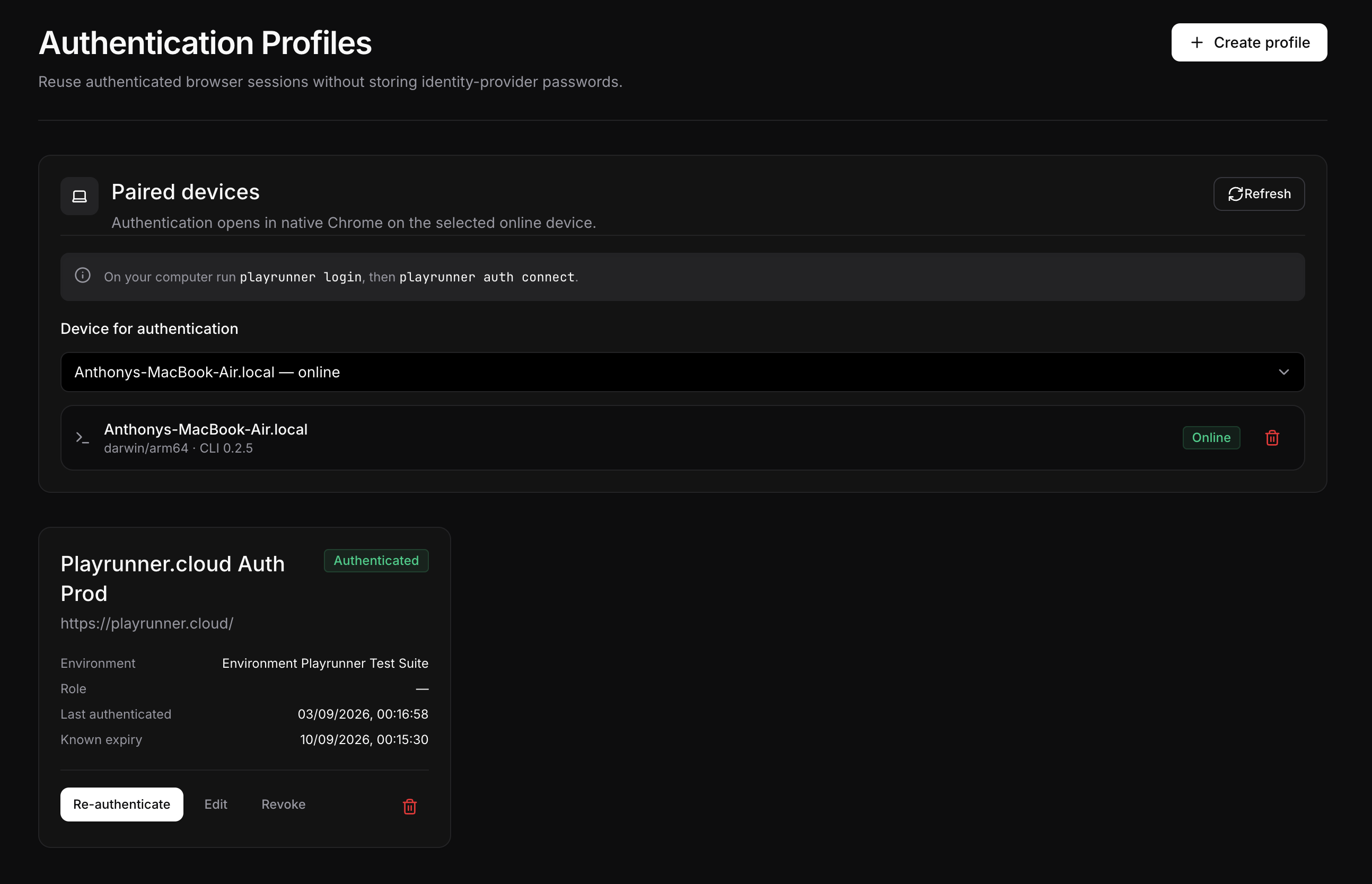
- Install and pair the CLI by following Connect the CLI for Cloud Authentication Profiles.
- Run
playrunner auth connectand leave that terminal open. - In Authentication Profiles, confirm that the computer appears as Online in Paired devices.
- Choose it under Device for authentication.
Local Playrunner
Keep the local API running and confirm Chrome or Chromium can be launched on the API host. No CLI pairing is required.
Step 4 — Authenticate in the visible browser
- Find the new profile and click Authenticate.
- Complete the normal sign-in flow in the Chrome window Playrunner opens. This can include redirects, single sign-on, and multifactor authentication.
- Leave the browser open.
- Complete the capture:
- In Playrunner Cloud, return to the terminal running
playrunner auth connectand press Enter. - In local Playrunner, return to Playrunner and click I've finished signing in.
- In Playrunner Cloud, return to the terminal running
- Wait for the profile status to become Authenticated.
Playrunner verifies the configured success condition, captures cookies, local storage, and IndexedDB state, encrypts that state, and records the earliest known future cookie expiry. It does not record the password you entered in the browser.
If verification fails, confirm that the browser reached the expected URL or that the configured selector is visible, then authenticate again.
Step 5 — Verify the stored session
In local Playrunner, click Test session on an authenticated profile. Local Playrunner opens a visible browser with the stored state, navigates to the start URL, and verifies the same success condition used during capture.
Playrunner Cloud does not provide a separate Test session action. Attach the authenticated profile to a Playwright node and run the workflow on the Playrunner Cloud runner. This exercises the same stored state and secure delivery path used by a real Cloud workflow. The paired computer and CLI do not need to remain online after capture when using Playrunner’s servers.
Step 6 — Attach the profile to a supported Playwright node
- Open the workflow editor.
- Add an Environment node and select the same saved Environment used by the Authentication Profile.
- Connect the Environment node to the Playwright node.
- Open the Playwright node configuration.
- Under Authentication Profile, select the authenticated profile.
- Select Local Runner in a local installation or Playrunner Cloud in the Cloud editor. Save the workflow and run it.
Playrunner rejects the run if the matching Environment is not linked, the profile is not authenticated, the profile belongs to another user, or the runner cannot perform the secure state handoff.
At execution time, the API grants only the selected Playwright node access to the profile. The runner receives the decrypted browser state through a sealed, execution-bound exchange and loads it into the Playwright browser context.
Manage a profile
Each profile shows its Environment, optional role, authentication status, last authentication time, and known expiry.
| Action | Effect |
|---|---|
| Re-authenticate | Replaces the stored browser state by running the manual sign-in flow again |
| Test session (local only) | Restores the state locally and checks the configured success condition |
| Edit | Changes profile metadata or authentication settings |
| Revoke | Immediately removes stored browser state but keeps the profile |
| Delete | Permanently removes the profile and its encrypted browser state |
An expired, revoked, unauthenticated, or reauthentication-required profile is disabled in the Playwright node selector until it is authenticated again.
Security model
- An Authentication Profile stores Playwright browser storage state, not one session ID. The state can contain cookies, local storage, and IndexedDB data for the captured origins. It does not contain the password entered in the browser, saved browser passwords, browser history, or cache.
- Authentication happens in a visible local browser; passwords are not sent to or stored by Playrunner.
- The Cloud companion makes outbound requests only. It does not expose an inbound port on the paired computer. Paired-device requests are signed, and capture uploads use short-lived capabilities over HTTPS.
- Captured browser state is encrypted at rest and omitted from normal profile API responses.
- Profiles are isolated by owner and Environment.
- Browser state is released only for the selected node in an authorized execution. Hosted runners receive it through a sealed, execution-bound exchange.
- Revoking a profile removes its stored state immediately. It does not revoke the session at the identity provider; use the provider's account controls if that is also required.
Treat the decrypted browser state as a password-equivalent credential. Anyone who obtains a usable copy may be able to load it into a browser and act as the signed-in account without entering the password or completing multifactor authentication again. Give the account only the permissions the workflow needs, and reauthenticate or revoke the profile whenever access changes.
Revoking or deleting the Playrunner profile prevents future Playrunner use but cannot invalidate a copy that was stolen earlier. If exposure is suspected, also revoke active sessions in the target application or identity provider.
Local installation storage
Local Playrunner uses the same encrypted AuthenticationProfile database
record as Cloud. In the standard Docker setup, PostgreSQL data persists in the
playrunner-postgres-data Docker volume, mounted at
/var/lib/postgresql/data in the container. A custom DATABASE_URL stores the
record in the configured PostgreSQL database instead.
The local credential-encryption keyring is generated into apps/api/.env as
PLAYRUNNER_CREDENTIAL_ENCRYPTION_KEYS, with the active version selected by
PLAYRUNNER_CREDENTIAL_ENCRYPTION_KEY_VERSION. Keep this file out of source
control, restrict it to the operating-system user, and back it up securely.
Losing or replacing the key makes previously stored profiles unreadable;
obtaining both the database and key can allow an attacker to decrypt them.
See Environment variables for the complete local configuration reference.
Troubleshooting
| Symptom | What to check |
|---|---|
| Interactive authentication is unavailable | For Cloud, connect an online paired device; locally, run the API and enable interactive authentication |
| The Cloud device is offline | Run playrunner auth connect, leave it open, and refresh Paired devices |
| Chrome or Chromium cannot be launched | Install a supported browser on the API host or paired companion computer |
| Authentication waits and then fails | Check the success URL or selector, then press Enter in the Cloud companion terminal or complete the local capture |
| The profile is disabled in the Playwright selector | Authenticate it again and confirm its status is Authenticated |
| The workflow requires the profile's Environment | Add that saved Environment node and connect it to the Playwright node |
| A Cloud workflow opens the sign-in page | Re-authenticate the profile, then run the workflow again; the CLI is needed only during reauthentication |
| A previously working local session fails | Click Test session, then Re-authenticate if the provider session expired |
For local browser configuration variables, see Environment variables. For general runtime problems, see Troubleshooting.